
What is Markdown?
Markdown is a lightweight markup language for creating formatted text using a plain-text editor. It was created by John Gruber in 2004 and is now one of the most popular markup languages in the world.
Free printable PDF plus 40+ elements, each with the syntax beside its live rendered output, and a verified matrix of what works on GitHub, Discord, Obsidian, Slack and Notion. Copy any example in one click.
No signup, no email. Updated July 2026 — every platform column re-checked against the official documentation.
Edit anything here and watch the right-hand pane update.
inline codeTIP
GitHub-style callouts render here too.
| Element | Syntax |
|---|---|
| Heading | # Title |
| Bold | **text** |
Everything renders in your browser — nothing is uploaded. Need more room? Open the full editor or the Markdown viewer.
| Element | Markdown Syntax | Rendered Result | ||||
|---|---|---|---|---|---|---|
| Heading 1 | # Heading 1 | Heading 1
| ||||
| Heading 2 | ## Heading 2 | Heading 2
| ||||
| Bold | **bold text** | bold text | ||||
| Italic | *italic text* | italic text | ||||
| Bold + Italic | ***bold italic*** | bold italic | ||||
| Strikethrough | ~~struck through~~ |
| ||||
| Inline code | `code` |
| ||||
| Link | [title](https://example.com) | title (clickable) | ||||
| Image |  |
| ||||
| Unordered list | - Item 1
- Item 2 |
| ||||
| Ordered list | 1. First
2. Second |
| ||||
| Task list | - [x] Done
- [ ] Todo |
| ||||
| Blockquote | > quoted text |
| ||||
| Code block | ```js
code
``` | | ||||
| Table | | A | B |
| - | - |
| 1 | 2 | |
| ||||
| Horizontal rule | --- |
Every row on the right is the real rendered output, not a description of it.
Create headings using # symbols. The number of # symbols determines the heading level (1-6).
# Heading 1
## Heading 2
### Heading 3
#### Heading 4
##### Heading 5
###### Heading 6Create bullet lists using dashes, asterisks, or plus signs.
- Item 1
- Item 2
- Nested item
- Another nested
- Item 3- Item
- Item* Item
* Item+ Item
+ ItemCreate numbered lists using numbers followed by periods.
1. First item
2. Second item
3. Third item
   1. Nested item
2. Another nestedAutomatically convert URLs to clickable links.
<https://example.com>Create a code block with syntax highlighting.
```javascript
const greeting = "Hello, World!";
console.log(greeting);
```const greeting = "Hello, World!";
console.log(greeting);Create tables using pipes and dashes.
| Header 1 | Header 2 | Header 3 |
|----------|----------|----------|
| Cell 1   | Cell 2   | Cell 3   |
| Cell 4 | Cell 5 | Cell 6 || Header 1 | Header 2 | Header 3 |
|---|---|---|
| Cell 1 | Cell 2 | Cell 3 |
| Cell 4 | Cell 5 | Cell 6 |
Hide notes in your source using HTML comments. The text is invisible in the rendered output.
<!-- This comment will not appear in the rendered output -->Want more than a quick reference? Each guide covers edge cases, common mistakes, and platform differences for one element.
Core Markdown is the same everywhere, but every platform adds and removes features. This verified matrix covers 21 features across 8 platforms — every cell checked against the official documentation on 2026-07-18. Click a platform name for its full cheat sheet.
| Feature | CommonMark | GitHub | GitLab | Obsidian | Discord | Slack | Jupyter / Rmd | |
|---|---|---|---|---|---|---|---|---|
Headings # Heading 1Source ↗ | yes ATX (#) and Setext styles; levels 1–6. | yes Levels 1–6 with auto-generated anchors. | yes Levels 1–6, Setext alternative; auto anchors. | yes Levels 1–6; appear in the outline pane. | partial H1–H3 (# to ###) plus -# subtext only. | no Not in message formatting; canvases only. | yes Six levels; Setext underline style also works. | yes Supported in Jupyter cells and R Markdown. |
Bold **bold text**Source ↗ | yes ** or __ delimiters. | yes ** or __. | yes ** or __. | yes ** or __. | yes **text** only; __ is underline here. | yes *text* markup or the toolbar button. | yes ** or __. | yes ** or __ in both. |
Italic *italic text*Source ↗ | yes * or _ delimiters. | yes * or _. | yes * or _; intra-word underscores ignored. | yes * or _. | yes *text* or _text_. | yes _text_ markup or the toolbar button. | yes * or _. | yes * or _ in both. |
Strikethrough ~~struck text~~Source ↗ | no Not in the spec. | yes GFM extension; GitHub also accepts a single ~. | yes GLFM: ~~double tildes~~. | yes GFM-style ~~text~~. | yes ~~text~~. | yes ~text~ (single tilde) or the toolbar. | yes ~~double tildes~~. | partial R Markdown (Pandoc strikeout): yes; not documented for Jupyter cells. |
Underline <u>text</u> (HTML)Source ↗ | no No syntax; raw <u>/<ins> HTML is the only option. | partial No Markdown syntax; GitHub documents the <ins> tag. | no No documented underline syntax. | partial <u> HTML works; no Markdown syntax, and Markdown inside HTML is not processed. | yes __text__ (Discord extension). | partial Toolbar only; no markup shortcut. | no Not supported. | partial No Markdown syntax; raw <u> passes through to HTML output. |
Tables | A | B |
| --- | --- |Source ↗ | no Not in the spec. | yes GFM tables extension with column alignment. | yes GLFM tables; paste from spreadsheets works. | yes Plus Live Preview table editing. | no No table syntax. | no No tables in messages. | yes Pipe tables; parsing quirks differ between old and new Reddit. | yes Jupyter renders GFM tables; R Markdown supports pipe tables. |
Task lists - [x] done
- [ ] todoSource ↗ | no Not in the spec. | yes GFM task list extension. | yes Adds an inapplicable [~] state. | yes Any character inside the brackets marks a task complete. | no Renders as a plain list item. | no No Markdown syntax for tasks. | no Renders as a plain list item. | partial R Markdown (Pandoc task_lists): yes; not documented for Jupyter cells. |
Footnotes Text.[^1]
[^1]: The note.Source ↗ | no Not in the spec. | yes GitHub.com extension; not part of the GFM spec itself. | yes GLFM footnotes. | yes Plus inline ^[...] footnotes. | no Renders as literal [^1]. | no Not supported. | no Renders as literal [^1]. | partial R Markdown (Pandoc footnotes): yes; Jupyter cells do not render them. |
Math (LaTeX) $x^2$Source ↗ | no Not in the spec. | yes MathJax on github.com; $ inline and $$ blocks. | yes KaTeX; $`...`$ inline and ```math blocks. | yes MathJax; $ inline and $$ blocks. | no Not supported. | no Not supported. | no No native rendering. | yes MathJax in Jupyter cells; LaTeX math in R Markdown. |
Mermaid / diagrams ```mermaid
graph TD
A --> B
```Source ↗ | no Renders as a plain code block. | yes Mermaid blocks render as diagrams on github.com. | yes ```mermaid; PlantUML and Kroki also available. | yes Native Mermaid rendering in notes. | no Renders as a code block. | no Renders as a code block. | no Renders as a code block. | partial JupyterLab 4.1+ renders ```mermaid natively; R Markdown needs the DiagrammeR package. |
Raw HTML <div>text</div>Source ↗ | yes HTML blocks and inline HTML are part of the spec. | partial Sanitized subset; scripts and some tags are stripped. | partial Sanitized subset (e.g. <details> and <br>). | partial Renders HTML, but Markdown inside HTML is intentionally not processed. | no HTML renders as literal text. | no No HTML rendering. | no Tags render as literal text; only HTML entities work. | partial Jupyter renders raw HTML; R Markdown passes it to HTML output only. |
Spoilers ||hidden text||Source ↗ | no Not in the spec. | partial No spoiler syntax; <details> HTML gives collapsible sections. | partial No spoiler syntax; <details>/<summary> HTML. | no No spoiler syntax. | yes ||text|| hides content until clicked. | no Not supported. | yes >!text!< syntax — different delimiters from Discord. | no Not supported. |
Dynamic timestamps <t:1752840000:R>Source ↗ | no Not in the spec. | no Not supported. | no Not supported. | no Not supported. | yes <t:unix:format> renders in each viewer’s timezone; seven formats. | partial Via <!date^unix^text> in app/bot messages (Slack mrkdwn). | no Not supported. | no Not supported. |
Callouts / alerts > [!note]
> ContentSource ↗ | no Renders as a plain blockquote. | yes Alerts: NOTE, TIP, IMPORTANT, WARNING, CAUTION. | yes GLFM alerts (note, tip, warning, caution, important). | yes 13 types with aliases, folding, and nesting. | no Renders as a plain blockquote. | no Renders as a plain quote. | no Renders as a plain blockquote. | no Quarto (R Markdown’s successor) adds callout blocks; classic R Markdown has none. |
Wikilinks [[Page Name]]Source ↗ | no Not in the spec. | partial [[links]] resolve in GitHub wiki pages only. | partial [[Page]] works in wiki pages; regular files and comments do not resolve it. | yes Vault-native; auto-updates when the target note is renamed. | no Renders as literal brackets. | no Not supported. | no Renders as literal brackets. | no Renders as literal brackets. |
Highlight ==highlighted text==Source ↗ | no Not in the spec. | no Renders as literal ==. | no Renders as literal ==. | yes ==text== marker-style highlight. | no Renders as literal ==. | no Not supported. | no Renders as literal ==. | no Pandoc’s ==mark== extension exists but is off by default. |
Comments (hidden text) %%hidden%%Source ↗ | partial Via <!-- --> HTML comments; hidden but kept in the output source. | yes GitHub documents hiding content with <!-- --> comments. | partial No dedicated syntax; <!-- --> HTML comments. | yes %%comment%% hides text in Reading view and on publish. | no Not supported. | no Not supported. | no Not supported. | partial <!-- --> hidden in HTML output only. |
Code blocks ```js
code
```Source ↗ | yes Fenced and indented blocks. | yes Fenced, with syntax highlighting. | yes Fenced; 100+ highlight languages. | yes Fenced, with syntax highlighting. | yes ``` with optional language. | yes ``` or the toolbar code block. | partial Fenced blocks only on new Reddit; old Reddit supports indented blocks only. | yes Fenced blocks; R Markdown chunks also execute code. |
Blockquotes > quoted textSource ↗ | yes > at the start of a line. | yes > at the start of a line. | yes > at the start of a line. | yes > at the start of a line. | yes > for one line; >>> quotes the rest of the message. | yes > markup or the toolbar. | yes > at the start of a line. | yes > at the start of a line. |
Images Source ↗ | yes  with optional title. | yes ; relative paths and uploads supported. | yes ; uploads supported. | yes Plus ![[embeds]] for vault files. | no Attachments/embeds only; no Markdown image syntax. | no File uploads only; no Markdown image syntax. | partial No Markdown image syntax; the rich-text editor supports image uploads. | yes Standard syntax; Jupyter also supports attachment: references. |
Links [text](https://example.com)Source ↗ | yes Inline, reference, and autolinks. | yes Inline, reference, and autolinks. | yes Inline, reference, and autolinks. | yes Inline links; [[wikilinks]] are the default. | yes Masked links [text](url) in user messages. | partial Composer toolbar or paste-to-link; mrkdwn uses <url|text>. | yes Inline, reference, and autolinks. | yes Inline links in both. |
Download this dataset as CSV, JSON, or Markdown, or compact PDF — all generated from the same verified source as this table.
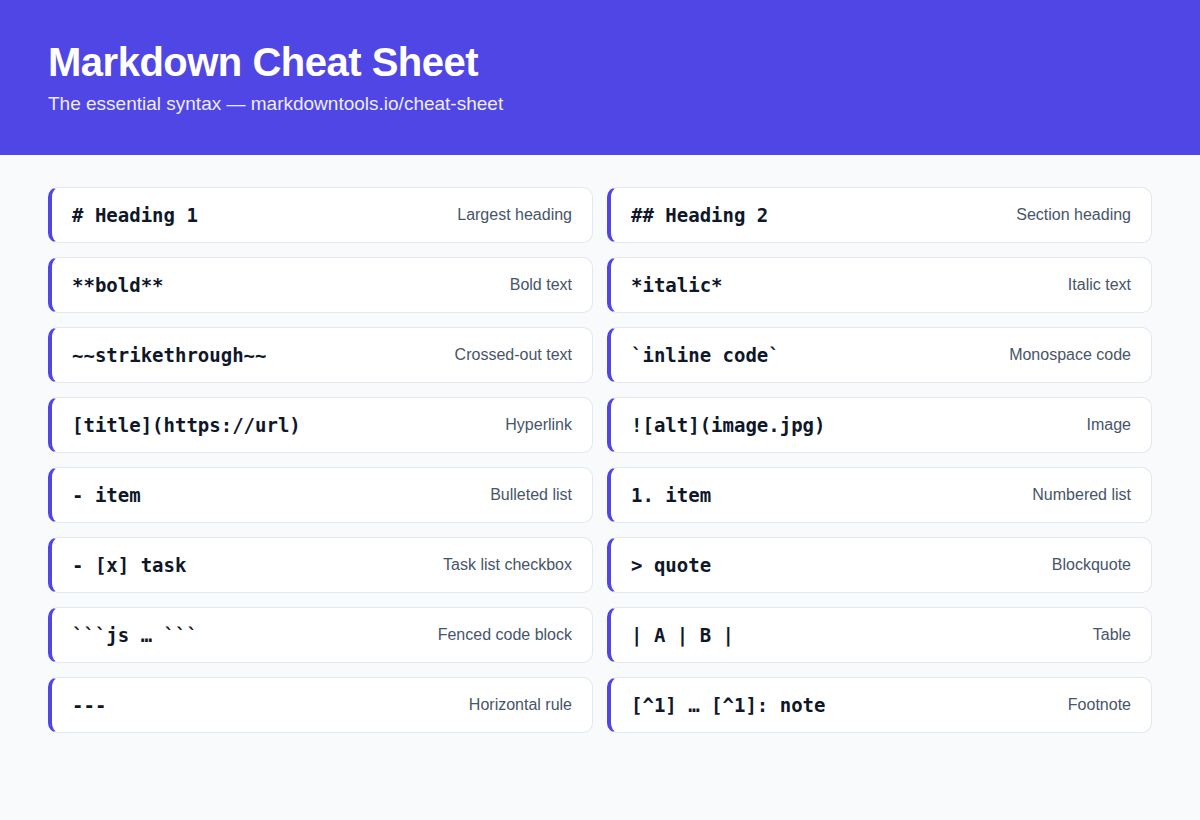
Prefer a picture? Save or share the Markdown cheat sheet as a single image — handy for pinning in team chats, wikis, and study notes.
 Download image (PNG)
Markdown is a lightweight markup language for creating formatted text using a plain-text editor. It was created by John Gruber in 2004 and is now one of the most popular markup languages in the world.
While core Markdown syntax is consistent across platforms, different platforms (GitHub, Discord, Obsidian, etc.) may support additional features or have slight variations. This is often called "flavored Markdown".
Markdown is used for documentation, README files, blog posts, notes, emails, and more. It's supported by GitHub, GitLab, Reddit, Discord, Slack, Notion, Obsidian, and many other platforms.
No, you can write Markdown in any plain text editor. However, specialized Markdown editors like VS Code, Obsidian, or Typora provide live preview and additional features.
The most common Markdown examples are: # Heading for headings, **bold** for bold text, *italic* for italics, [title](url) for links,  for images, - item for bullet lists, > quote for blockquotes, `code` for inline code, and triple backticks for code blocks.
Yes — click the Download PDF button at the top of this page to get the complete Markdown cheat sheet as a free PDF file you can print or keep offline. No signup or email required.